
How to Set Up Rigi24 Core from Scratch
Set up Rigi24 Core correctly from day one so future modules can be added without reorganizing your basic business data.

Setting up Rigi24 Core is not difficult, but doing the basics correctly from the beginning saves work later. A clean Business profile, accurate branch information, separate user accounts and a tidy customer directory create a foundation that can support Booking, CRM, Queue or other modules if those modules are activated in the future.
Core itself is free, designed for one branch and up to three users at the base level, and does not require a setup payment when you configure it yourself. An optional 150 GEL on-site setup and initial training service is available for businesses that want hands-on assistance.
Prepare the information before you start
A few minutes of preparation can prevent hours of correction later. Have the following ready:
- the real business or brand name customers know;
- the official logo in a usable quality;
- the public phone number and contact channels;
- the correct branch address;
- real opening hours;
- a short, clear business description;
- the details of the users who should have access;
- an initial customer list, if you plan to organize the Customer Directory immediately.
Try to keep the information consistent with your website, Google Business Profile and social pages. A phone number or opening time that differs from one channel to another creates unnecessary confusion.
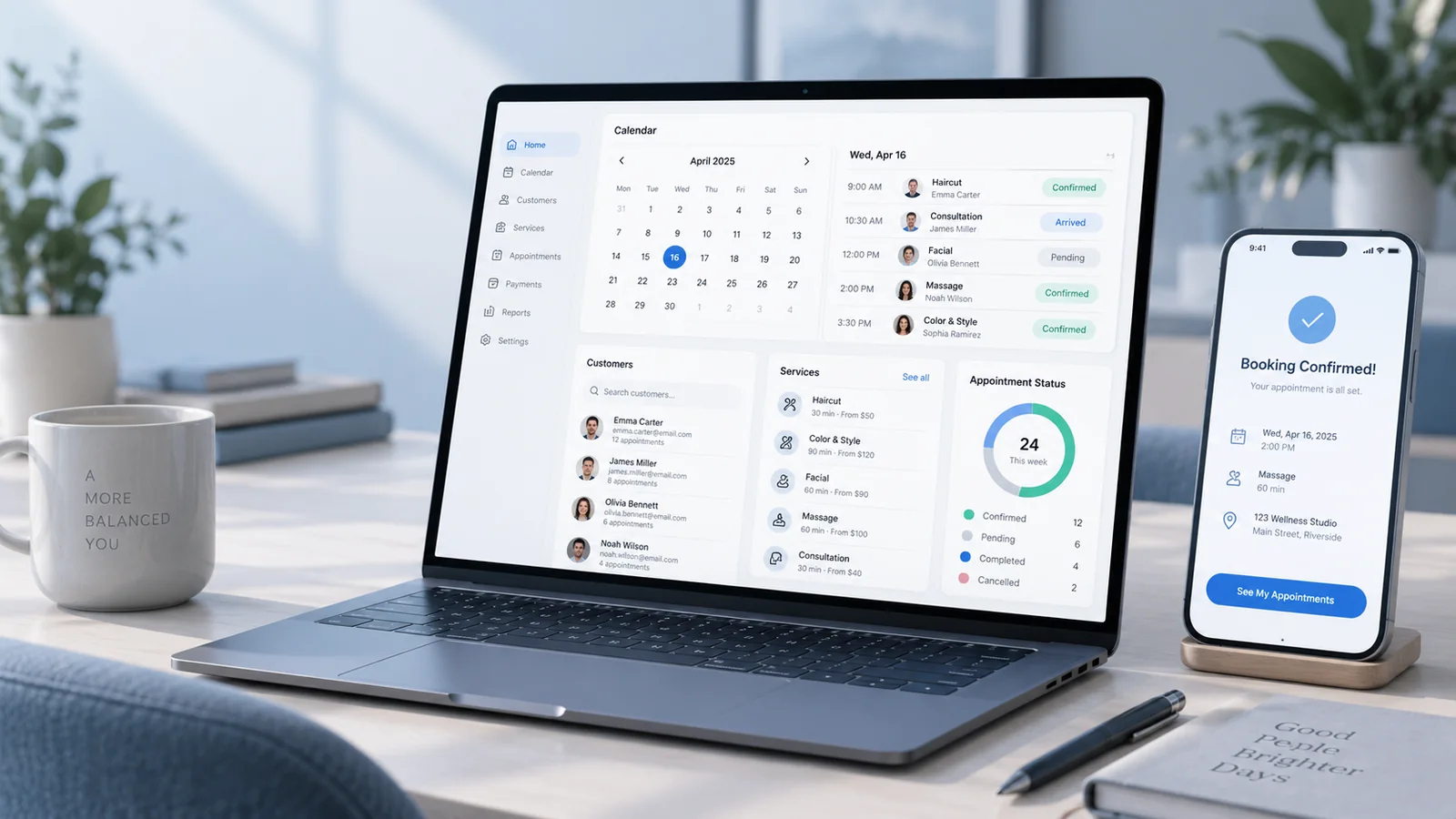
Step 1: create the account and the Business
The first layer is the personal user account. The owner or primary manager should ideally create the Business from an individual account rather than creating one shared “office” login for everybody. Separate accounts become important as soon as permissions and responsibilities need to be controlled.
After signing in, create the Business. At this stage the goal is to establish the main business identity. Paid modules can be considered later and should attach to this same Business environment.
Step 2: complete the business profile
Business name
Use the real brand or business name. Avoid turning the name field into an advertising sentence or a list of keywords. Customers should immediately recognize the company they are viewing.
Description
Write a short explanation of what the business actually does and who it serves. Specific language is more useful than generic claims such as “the best quality and service.” You can refine the description later, but the first version should already be understandable to a new customer.
Phone, address and opening hours
These fields have direct operational impact. Use a phone number that is genuinely answered, an address that can be found and opening hours that reflect reality. If the schedule changes, update the public information rather than leaving old hours online.
Logo and images
Use the official brand asset. A stretched, low-quality or outdated logo makes an otherwise clean public profile look unfinished.
Step 3: define the first branch correctly
The permanent free Core level is designed for one branch. Even if the business has only one location, keep its branch information accurate. Location-aware data and future modules may depend on knowing which branch an action belongs to.
If you already operate several active branches, do not artificially combine them into one location just to fit the free level. The correct commercial scale should be evaluated based on the real operation.
Step 4: add users with appropriate access
Core supports up to three users at the base level. A practical structure could be:
- owner or primary manager;
- receptionist/operator;
- a second manager or another operational user.
Do not give every user full administrative access by default. The “least access necessary” principle improves security and keeps each user's interface simpler.
Step 5: start the Customer Directory with clean data
If you already have customers in Excel, phones or another system, do not import or copy everything without review. Duplicates, incomplete names and old numbers reduce the value of the new environment.

Keep the information needed to identify and contact the customer. Core is designed for basic data and search; full interaction history, follow-ups, tasks and advanced notes belong to professional CRM.
For a deeper explanation, see Basic customer management with Rigi24 Core.
Step 6: review the public page as a customer
Once the profile is complete, open the public page as if you were a new customer. Do not review it only from inside the administration panel. Ask:
- Is the business name correct and obvious?
- Does the phone number work?
- Is the address accurate?
- Are opening hours current?
- Does the description make sense to someone who has never met the business?
- Does the logo display cleanly on mobile?

The public Core page is a reference point for essential information. The article Create a free online business page with Rigi24 covers this part in more detail.
Step 7: verify dashboard access and notifications
Sign in as each type of user and confirm that the person can reach the areas needed for the job without seeing unnecessary management functions. The basic dashboard should make daily navigation clear, and relevant system/account notifications should be visible to the right users.
This check is especially valuable before a paid module is added. Incorrect base permissions become more difficult to manage after more functionality is active.
Step 8: understand the Telegram Mini App as an access channel
The Telegram Mini App is another way to access authorized Rigi24 functions. Core provides basic access; additional capabilities depend on the modules and entitlements active for the Business.
It should not be treated as a separate database or unrelated application. The user identity and Business remain part of the same Rigi24 environment.
Step 9: define the problem before buying a module
After Core is ready, observe real daily work. The useful question is not “Which module has the longest feature list?” but “Which recurring problem is costing us time, money or customers?”
- too many calls/messages to arrange appointments → evaluate Booking;
- disorder and waiting in a physical line → evaluate Queue;
- missed customer follow-ups and tasks → evaluate CRM;
- value in direct web calling or softphone workflows → evaluate WebRTC;
- a real need for product catalogue and order flow → evaluate Store.
These are separate products. Having Core does not mean they are automatically active.
Step 10: request a trial before a paid commitment
Rigi24's standard policy is a 15-day free trial for a paid module, per Business + Module, subject to approval. The business submits the request, it remains Pending until reviewed by Super Admin, and the trial starts after approval/activation.
An administrator can extend a justified trial so that the total reaches up to 30 days. A payment card is not required to start the standard trial. See Rigi24 module free trial policy for the full process.
What does the optional 150 GEL on-site setup include?
Self-setup is free. The 150 GEL charge applies when the business asks Rigi24 staff to perform setup and initial training on site. Depending on the agreed scope, it can include:
- initial Business setup or review;
- entering profile information supplied by the customer;
- checking the branch and users;
- reviewing base access rights;
- activating/checking purchased modules;
- initial training for the manager and users;
- a final on-site test.
The fee is for the on-site service, not for ownership of the free Core account.
Common setup mistakes
One shared account for everyone
It feels convenient initially but makes permissions and responsibilities unclear later.
Completing fields just to finish the form
A public page with an old phone number or wrong hours is worse than a page that has not yet been published properly.
Buying several modules before identifying the need
Core exists specifically so a business can establish the foundation first and measure the real operational problem.
Turning the Customer Directory into a storage dump
More data is not automatically better data. Keep information accurate, relevant and useful.
Final launch checklist
- Business created with the correct name;
- logo, phone, address, description and opening hours checked;
- first branch correctly defined;
- separate accounts for each user;
- permissions reviewed;
- Customer Directory started with clean data;
- public page tested outside the admin panel and on mobile;
- dashboard and notifications checked;
- Telegram Mini App tested if the team plans to use it;
- no paid module activated without a defined business reason.
Conclusion
A good Core setup is about building a foundation you do not need to rebuild later. Accurate business information, one correctly defined branch, separate users, a complete public page and clean customer data matter more at the beginning than activating a long list of advanced features.
Once that base is stable, choose the next module from a real workflow problem. If you run a small team and want a simple decision framework, continue with Rigi24 for small businesses.
Set Core up correctly from day one
Start free on your own, or choose the optional 150 GEL on-site setup and training service.
Frequently asked questions
Do I need technical skills to set up Core?
No. The base flow is designed for business managers, with optional on-site training available.
Should I enable every module immediately?
No. Start with the main business need and only the relevant module.
Is on-site setup mandatory?
No. Self setup is free; on-site setup and training is optional at 150 GEL.
Can the system be expanded later?
Yes. Core is designed as the foundation for future users and modules.
 Rigi24 Academy · InvoicingComplete Guide to Rigi24 Invoicing — Invoices, Acceptance Acts, Payments and Accountant Workflow
 RIGI24 STOREComplete Guide to Rigi24 Store: From Product Setup to Order Delivery
 RIGI24 · CUSTOMER LOYALTYWhat Is a Customer Loyalty Club and Why Does Every Business Need One? A Comprehensive Guide to Customer Loyalty
 RIGI24 · CUSTOMER LOYALTYWhat Features Should Customer Loyalty Software Have? A Guide to Selecting and Introducing Rigi24 Loyalty Features